Install Tag
Download Tag or install from a terminal, update, and uninstall.
Install Tag in three steps. It takes a few minutes.
1. Download Tag
Download Tag from the Tag guide or from GitHub releases:
| Your computer | Download | Then |
|---|---|---|
| Mac | Tag-VERSION-macos.dmg | Open it and drag Tag to Applications. |
Windows and Linux: coming soon. Until then, use the terminal installer. See Install from a terminal.
During the 0.3 beta, downloads are prereleases.
2. Open it and click Install Tag
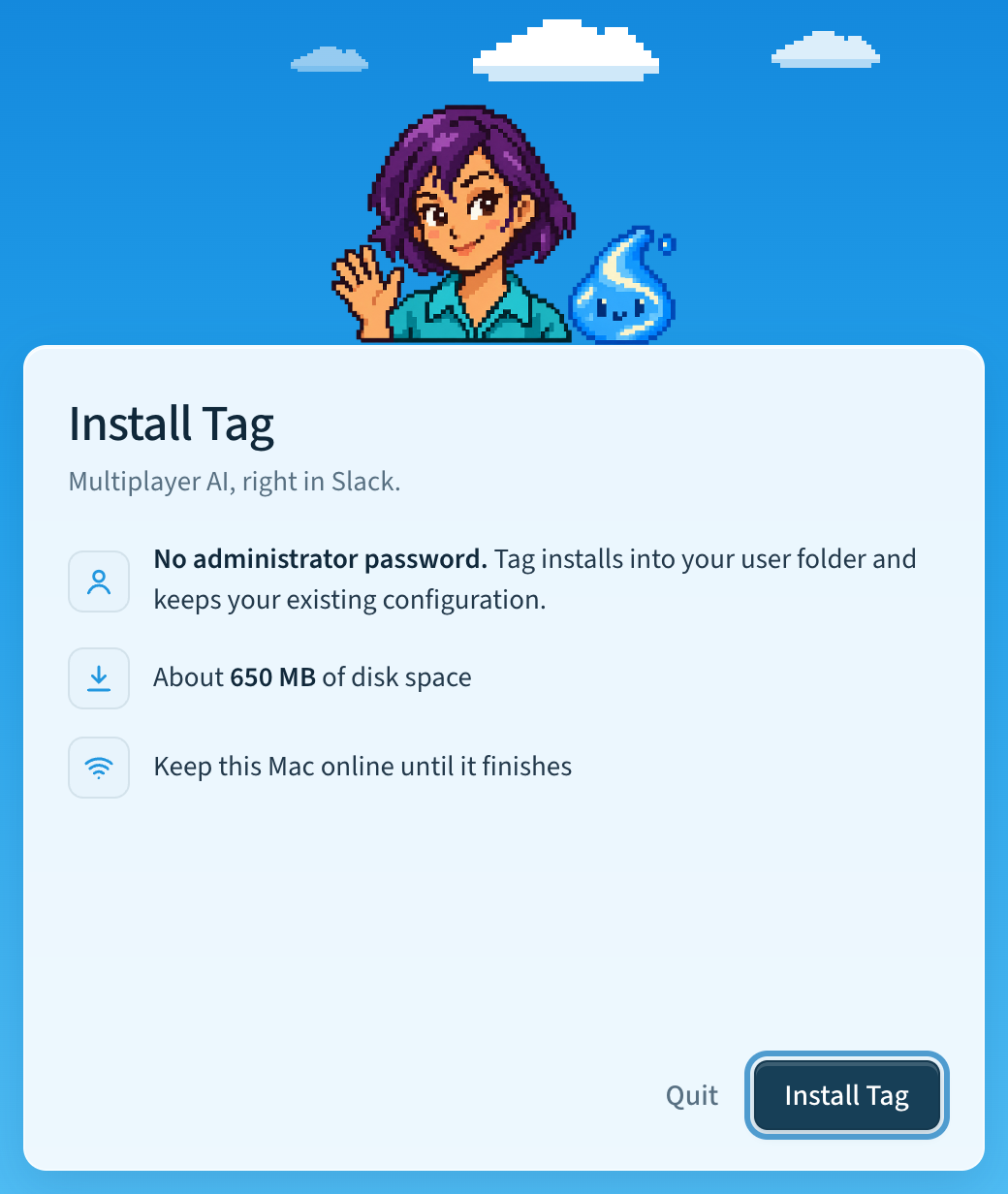
Open Tag and click Install Tag. You don't need an administrator password. Keep your computer online until it finishes.
Tag shows each step with a progress bar. Preparing local memory takes the longest.
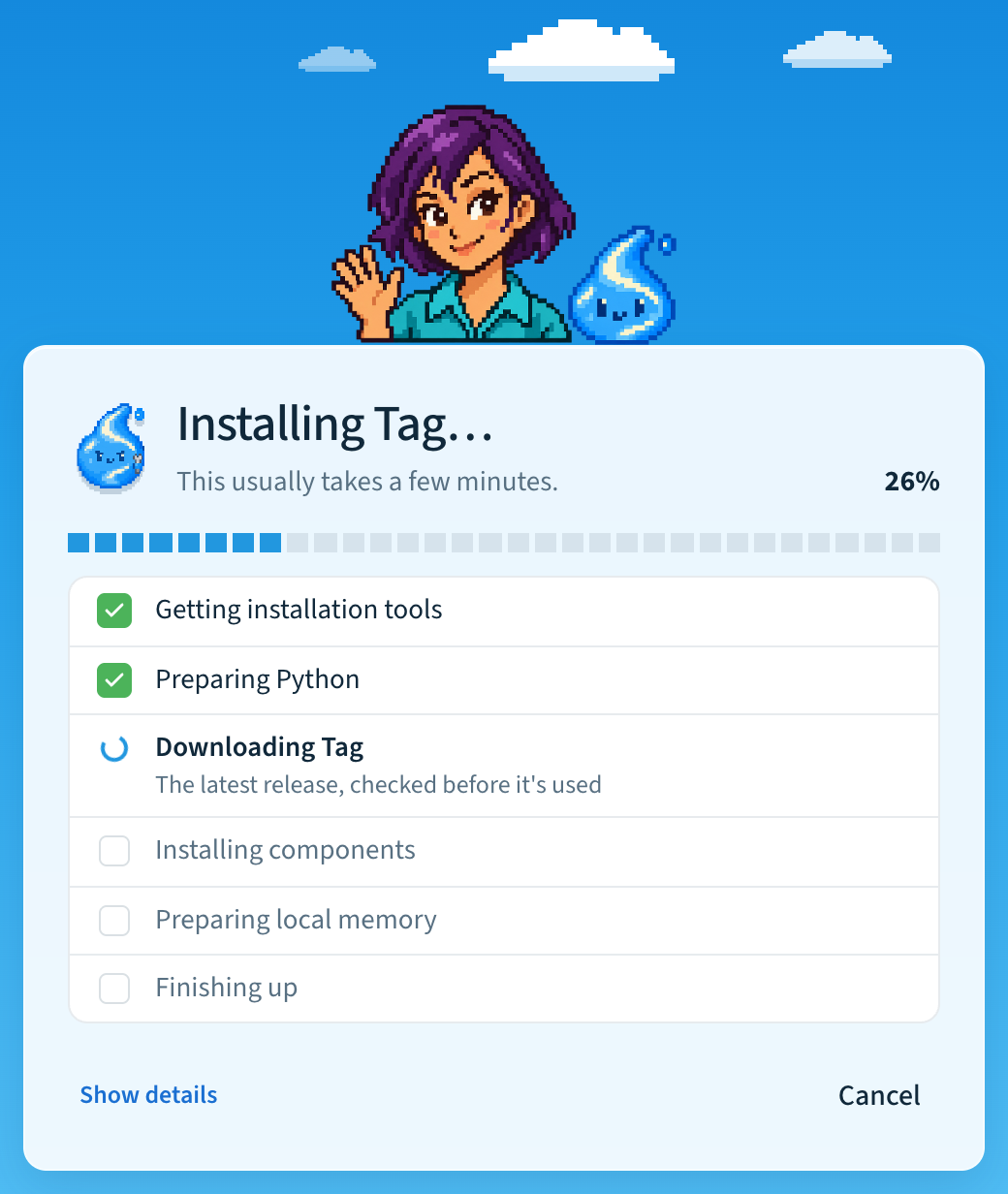
If a step fails, the app tells you why. Click Try again. It is safe to retry. To share what went wrong, click Show details, then Copy details.
3. Set up your first Tag
Click Set up your first Tag. The app asks for:
- Your Tag's name, description, and picture.
- Its AI model.
- Its Slack workspace.
Then it shows a recap. When you approve it, the app creates the Slack app and lets you choose channels. Your Tag then starts by itself. See Add a Tag.
flowchart LR
    Open["Open Tag"] --> Found{"Tag<br/>installed?"}
    Found -->|No| Install["Install Tag<br/>(a few minutes)"]
    Install --> Setup["Set up your<br/>first Tag"]
    Setup --> Start["Tag starts"]
    Start --> Home["Home"]
    Found -->|Yes| Home
When you're done, the app opens on Home. Mention your Tag in Slack to try it. See Your first task.
The app stays in the menu bar when you close the window. To keep your Tags running after a restart, open Settings → General and turn on Open Tag at login and Keep Tags running.
Before you begin
- A computer that can stay awake and online while Tag answers: macOS 12 or later for the desktop app. The terminal installer also supports Windows 10 or 11 and 64-bit Linux.
- About 650 MB of free disk space.
- An AI account. Use Codex or Claude Code if you have one. You can also connect a ChatGPT plan or an API key during setup.
- Permission to add an app to your Slack workspace. Your workplace may need an administrator to approve it.
You don't need to install anything else. Tag brings its own copy of Python and Slack CLI. It doesn't install or change Codex or Claude Code.
Install from a terminal
You can install the same tag command without the app.
Mac and Linux:
curl -fsSL https://hover.team/tag/install | shWindows PowerShell (5.1 or later):
$installer = Join-Path $env:TEMP 'tag-install.ps1'
Invoke-WebRequest https://raw.githubusercontent.com/klovr-co/hover-tag/main/install.ps1 -OutFile $installer
& $installer
Then run tag setup and tag start. For install options, coding-agent setup,
where files live, and running from source, see
Installation details.
Update Tag
The app checks for updates every six hours. When one is ready, you see Update Tag. Click it. Updates never install without your click. Your settings are kept. If an update stops halfway, click Try again.
In the terminal: tag upgrade.
Release channels
A release channel decides how new the updates you get are.
flowchart LR
    Edge["Edge<br/>every main build"] --> Alpha["Alpha<br/>newest changes"]
    Alpha --> Beta["Beta<br/>tested prereleases"]
Beta --> Stable["Stable<br/>qualified releases"]- Stable gets fully tested releases.
- Beta gets prereleases that are being tested.
- Alpha gets the newest changes first.
- Edge gets every build. It is for developers and is terminal-only.
The app follows the channel it was downloaded from, so a beta download follows beta. To change it, open Settings → Updates → Release channel. The app shows what will change, then updates the app and your Tags together.
If you switch to a channel whose newest release is older than yours, you keep your release until that channel catches up.
In the terminal: tag upgrade --channel beta.
Upgrade from v0.2
Download Tag, or run tag upgrade --channel beta (during the 0.3 beta).
The app finds your Tags and opens Home. You don't need to set up again.
What you'll notice:
- Your first Tag has a new name made from its Slack workspace and app IDs.
- Each Tag has one model and thinking level. Change it in the Tag's Details tab. The old Configure view in Slack is gone.
- Files Tag saves also appear in the Slack thread.
- If Slack needs you to sign in again or an administrator to approve, Tag tells you exactly what to do.
If a Tag doesn't restart, see Troubleshooting. For the full list of changes, see Upgrade migrations from v0.2.
Uninstall
Choose the smallest step that does what you need. Each step keeps your Slack app unless you choose to delete it.
| Goal | Do this |
|---|---|
| Remove one Tag | In the Tag's Details tab, click Remove this Tag…. Its files move to an abandoned folder. The Slack app stays. |
| Remove one Tag and its Slack app | Click Remove this Tag…, then Also delete the Slack app…. This is permanent. A new app gets a different App ID and bot. |
| Stop Tags starting at login | In Settings → General, turn off Keep Tags running and Open Tag at login. |
| Start one Tag's setup over | In the terminal: tag NAME reset. |
To uninstall Tag completely:
- In the Tag app, click Stop all for each workspace. Then run
tag autostart offandtag memory stopin a terminal. - Quit the app and delete it. Drag it to the Trash.
- Remove the
tagcommand from its folder. - Back up anything you want to keep. Then delete Tag's files and each Tag's
folder in
~/Tag. See Where Tag keeps files.
Your Codex and Claude settings and MFS data in ~/.mfs stay in place. Slack
apps stay in Slack until you delete them there.
If you reinstall later, your Tags come back.
Last updated