Set up and manage Tag
Add, start, update, and remove Tags in the Tag app or the terminal.
The Tag desktop app is the easiest way to manage your Tags. Everything it does, you can
also do with the tag command in a terminal. Both show the same Tags, so use
whichever you like.
A quick tour of the app
flowchart LR
    Home["Home<br/>Tags by workspace"] -->|Click a Tag| Detail["A Tag"]
    Detail --> Activity["Activity"]
    Detail --> Channels["Channels"]
    Detail --> Logs["Logs"]
    Detail --> Details["Details"]
    Home -->|Gear| Settings["Settings"]
Home
Home lists your Tags, grouped by Slack workspace. Each workspace shows how many Tags are online, with Start all or Stop all. Each Tag has a switch to start or stop it.
The line at the top shows what matters most right now. That could be a Tag that can't answer (click Fix), the latest reply, or a greeting. Tags that aren't finished appear under Finish setting up. Use search to find a Tag or channel.
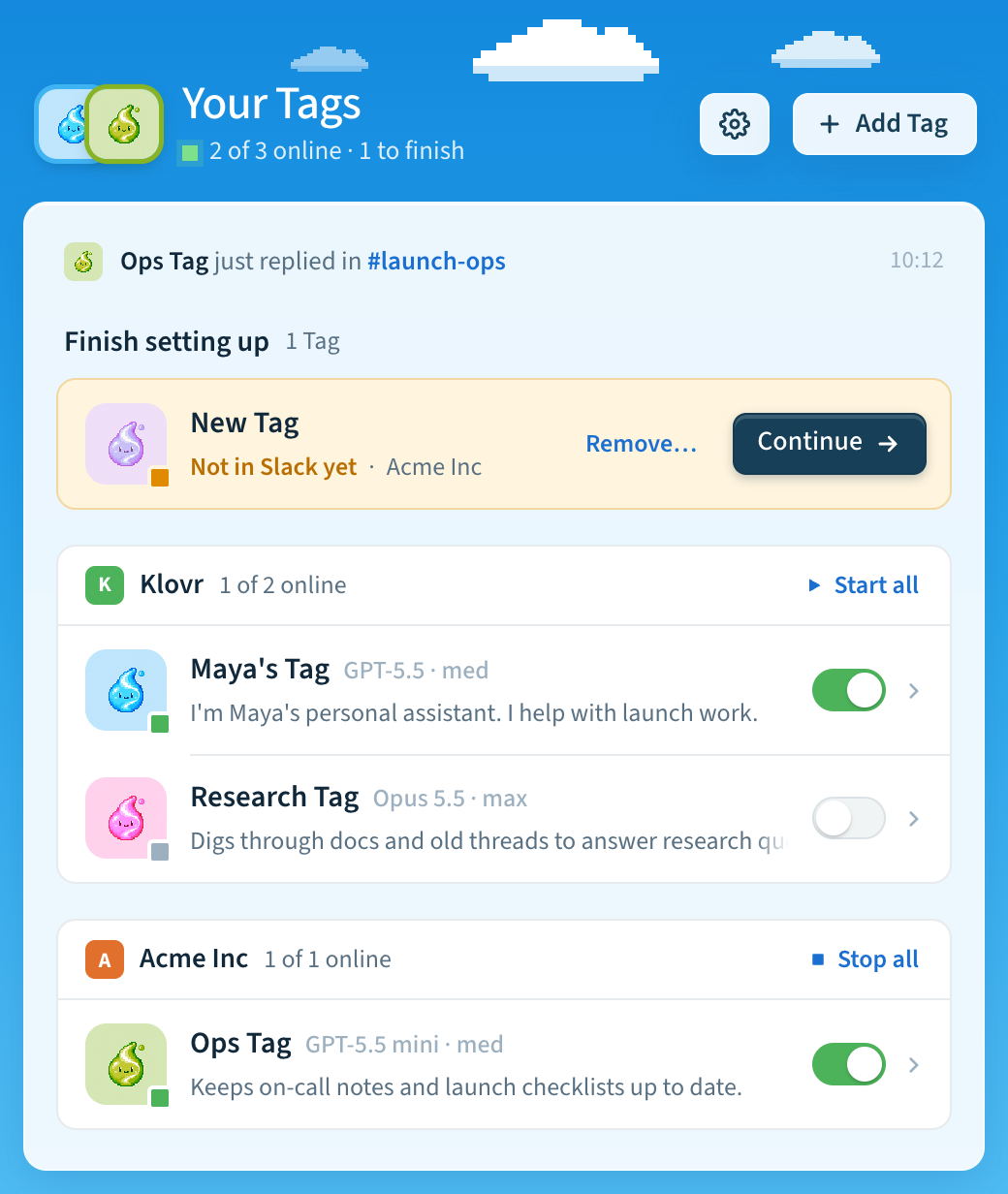
The app also lives in the menu bar. Its menu has Open Tag…, Add Tag…, Settings…, Start All Tags, Stop All Tags, Keep Tags Running, and Quit Tag. Closing the window keeps the app running there. The app tells you if a Tag goes offline unexpectedly.
A Tag's tabs
Click a Tag to open it. It has four tabs.
- Activity shows the Tag's replies, newest at the bottom. Click a reply's step count to see what the Tag did. Replies in the same Slack thread are grouped together. To see failed requests, tick Show errors.
- Channels lists where the Tag can reply. Click a channel to see every Tag's activity in it.
- Logs shows the Tag's log. Click Copy full log to share it.
- Details shows the Tag's name, description, workspace, model, and working folder. You can rename, describe, or remove the Tag here.
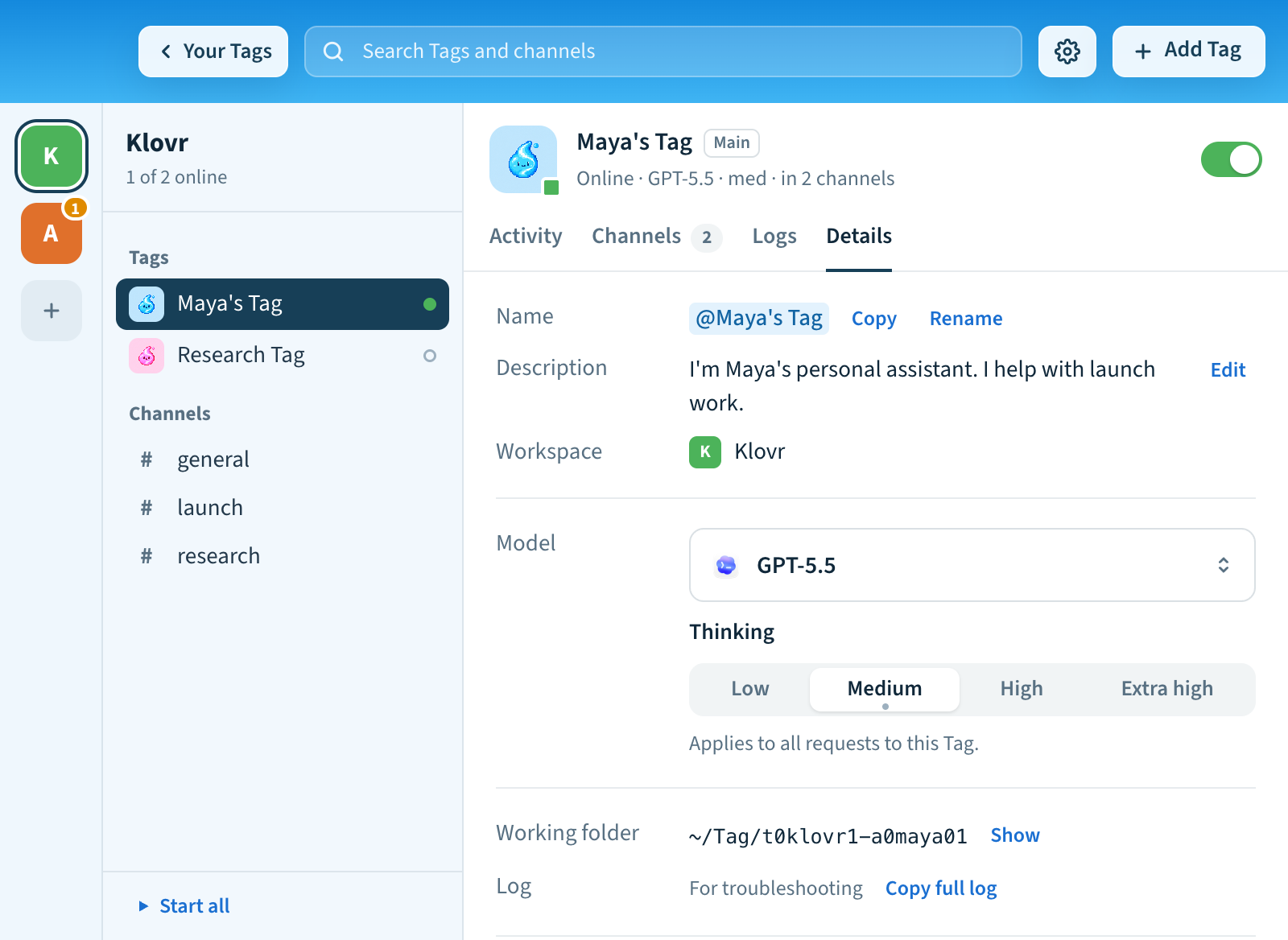
When a Slack message mentions the Tag app, click the link to open that Tag's Details in the app.
Settings
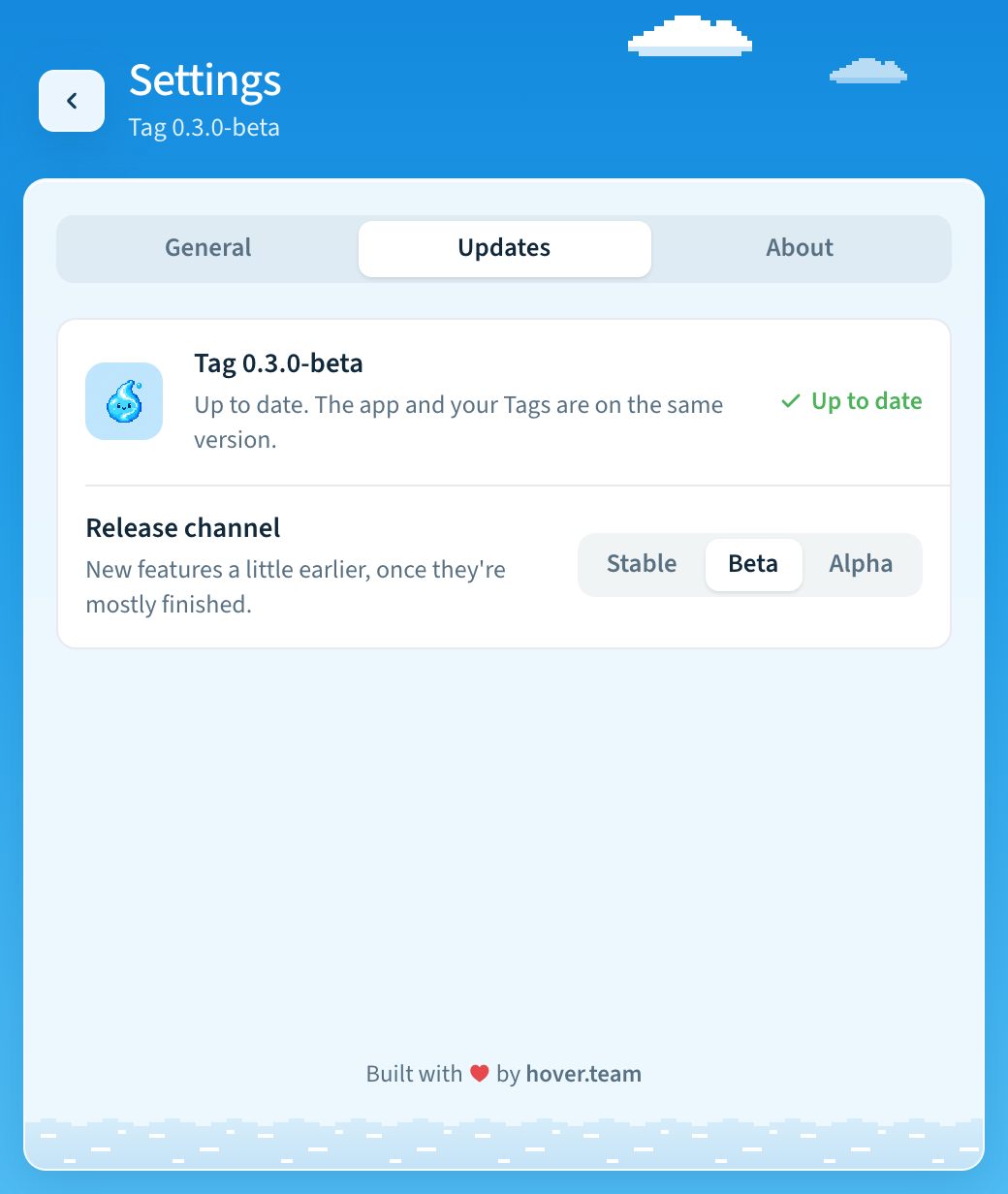
Click the gear to open Settings. It has three tabs:
- General: Open Tag at login, Appearance, Keep Tags running, AI connections, and Share usage data.
- Updates: Update Tag and the Release channel (Stable, Beta, or Alpha).
- About: documentation and Replay onboarding.
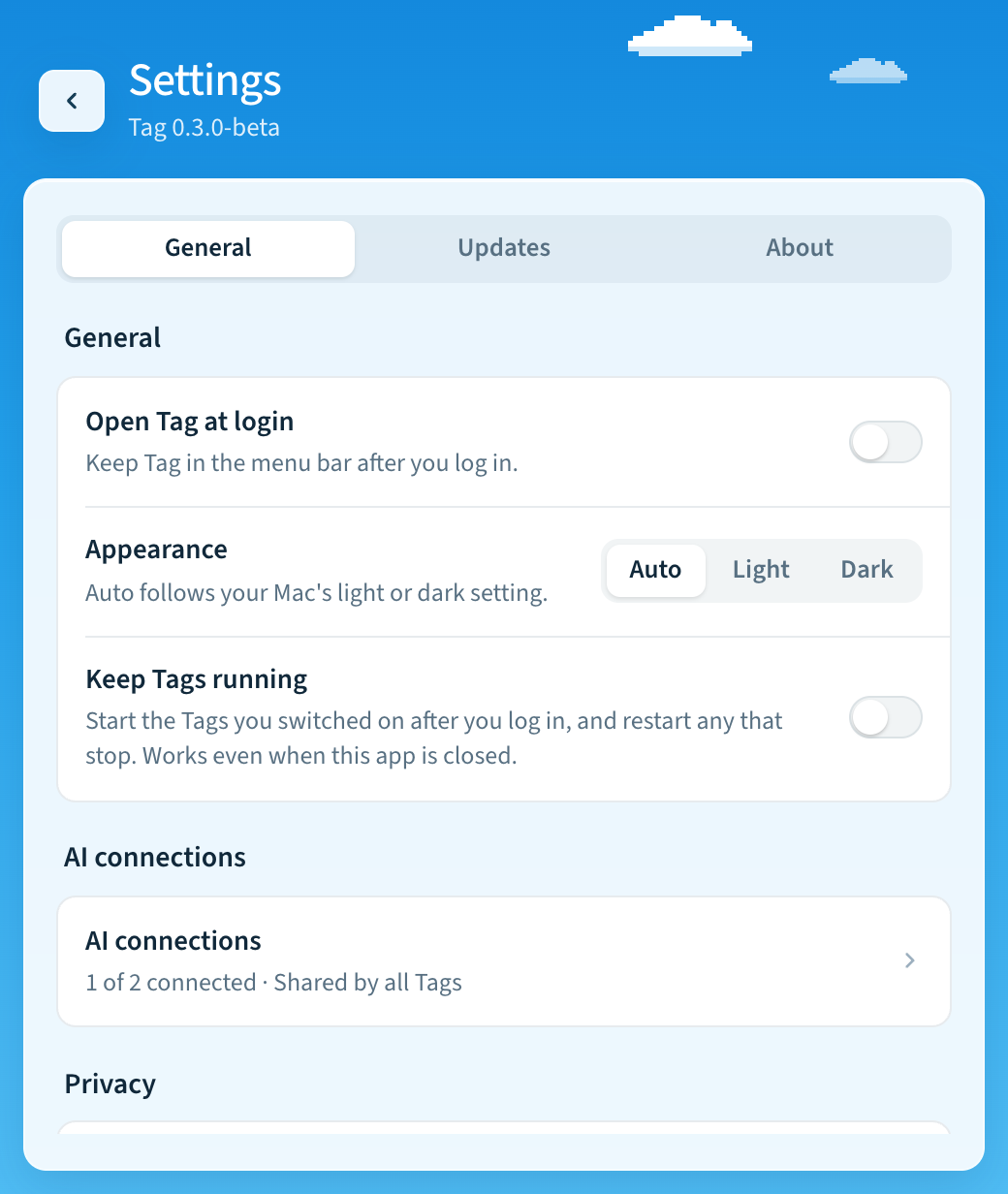
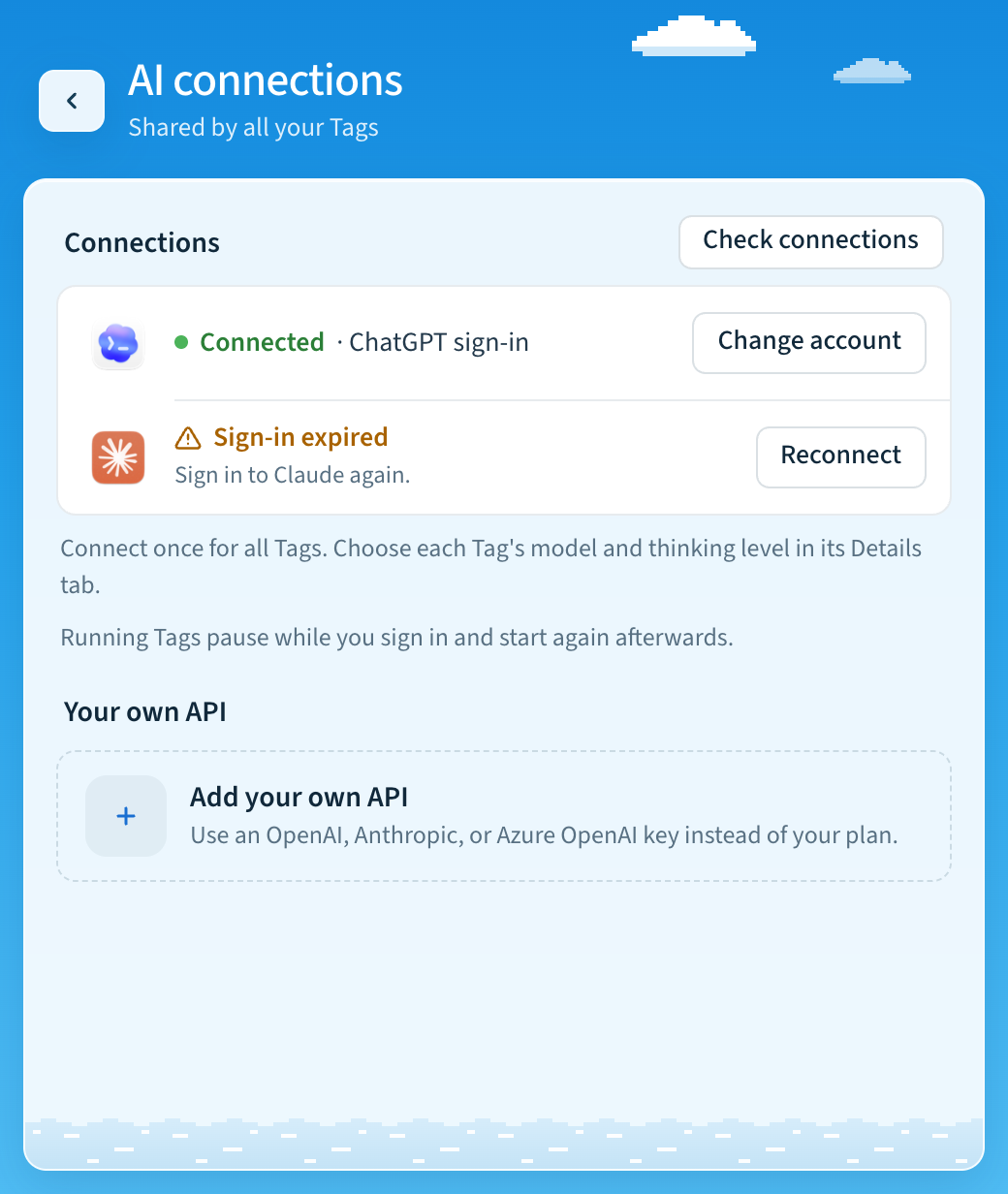
AI connections shows your Codex and Claude accounts. Click Check connections to make sure they work, or sign in again.
Add a Tag
- On Home, click Add Tag.
- Choose a name, a one-line description, and a picture. Click Shuffle picture for a new one, or upload your own.
- Choose the AI model.
- Choose the Slack workspace. Sign in to Slack if asked.
- Check the recap. Nothing changes in Slack until you click Create in Slack.
- Choose channels. You can skip this and
/invitethe Tag to a channel in Slack later.
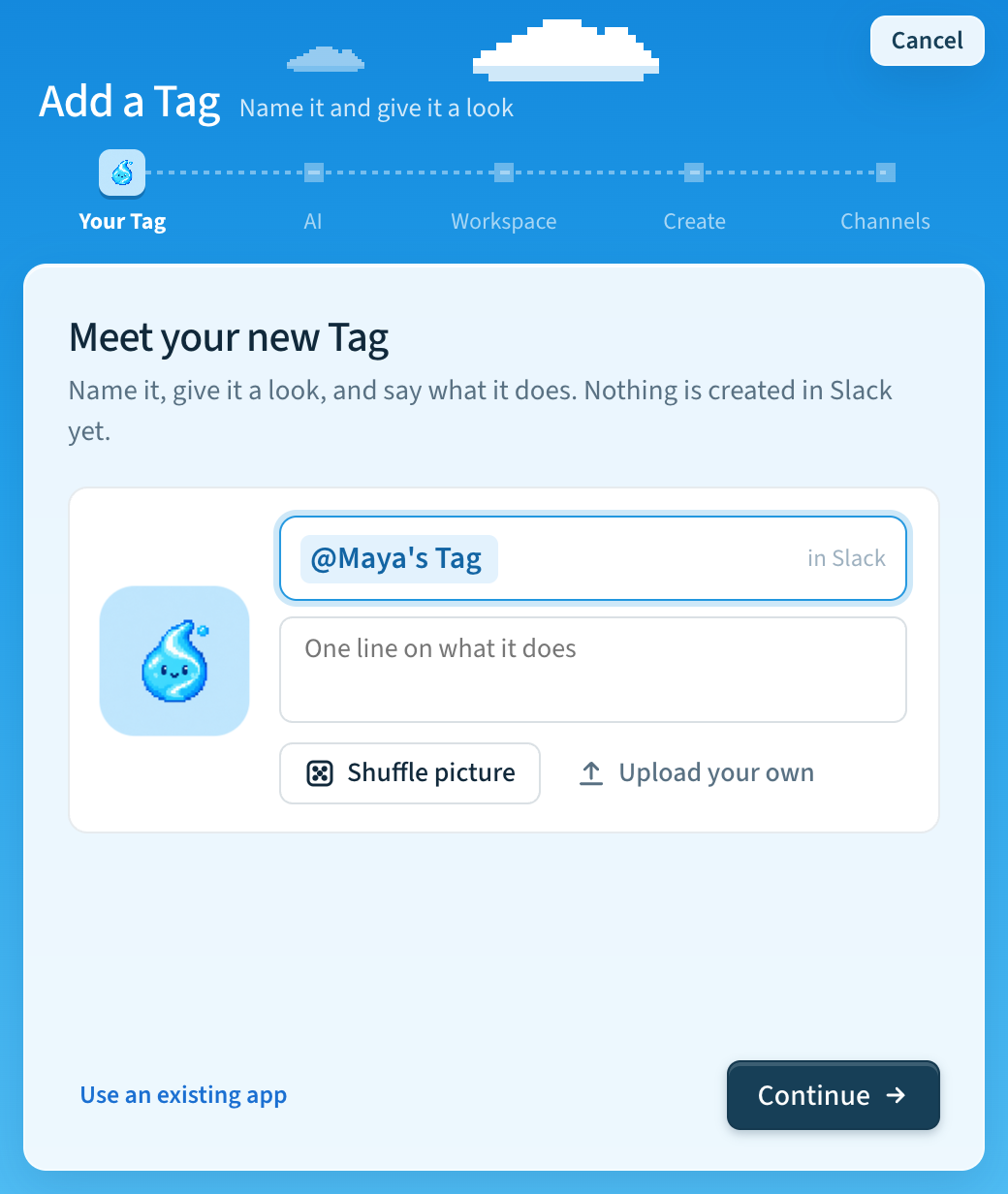
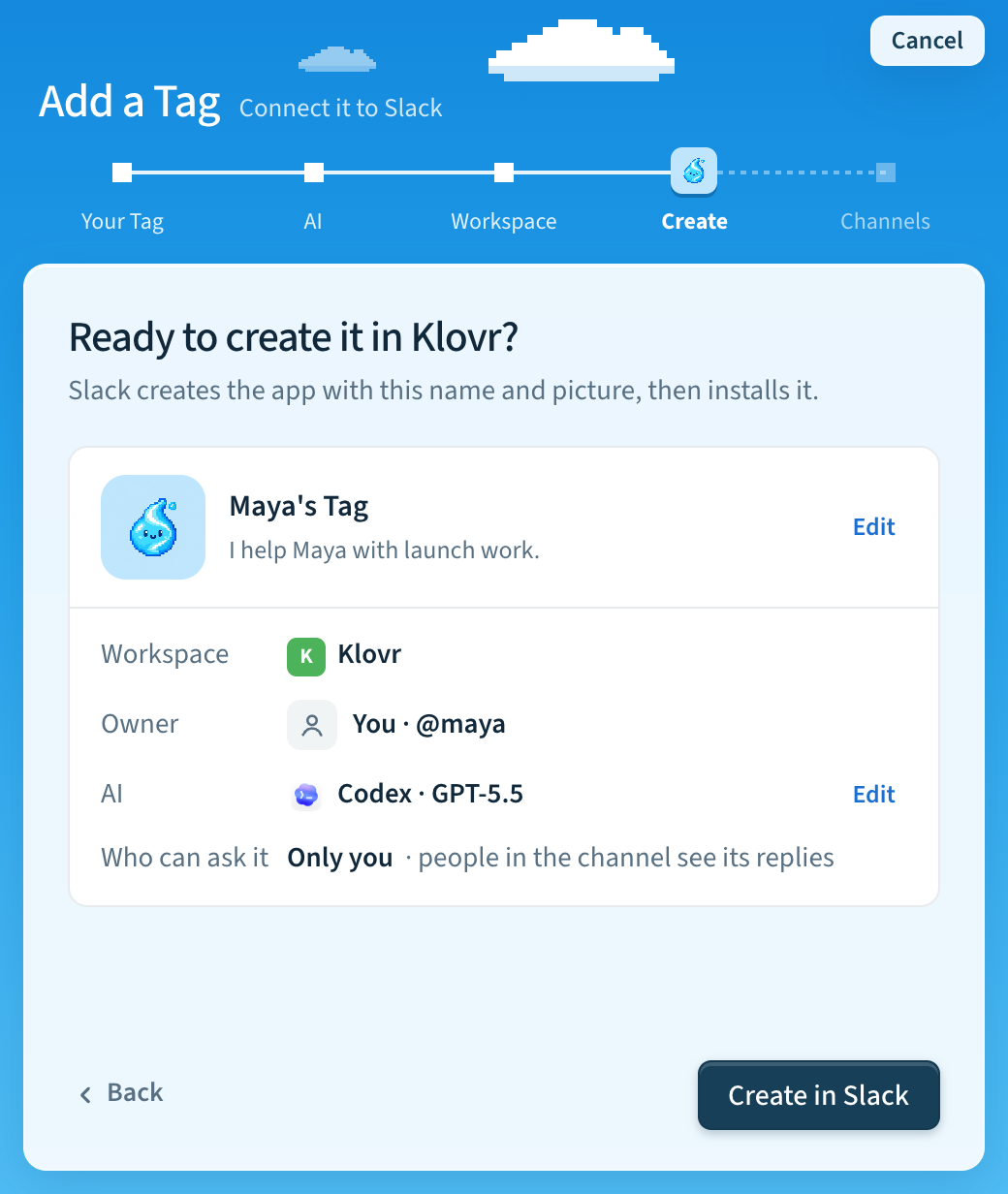
Your new Tag then starts by itself. The app shows each step.
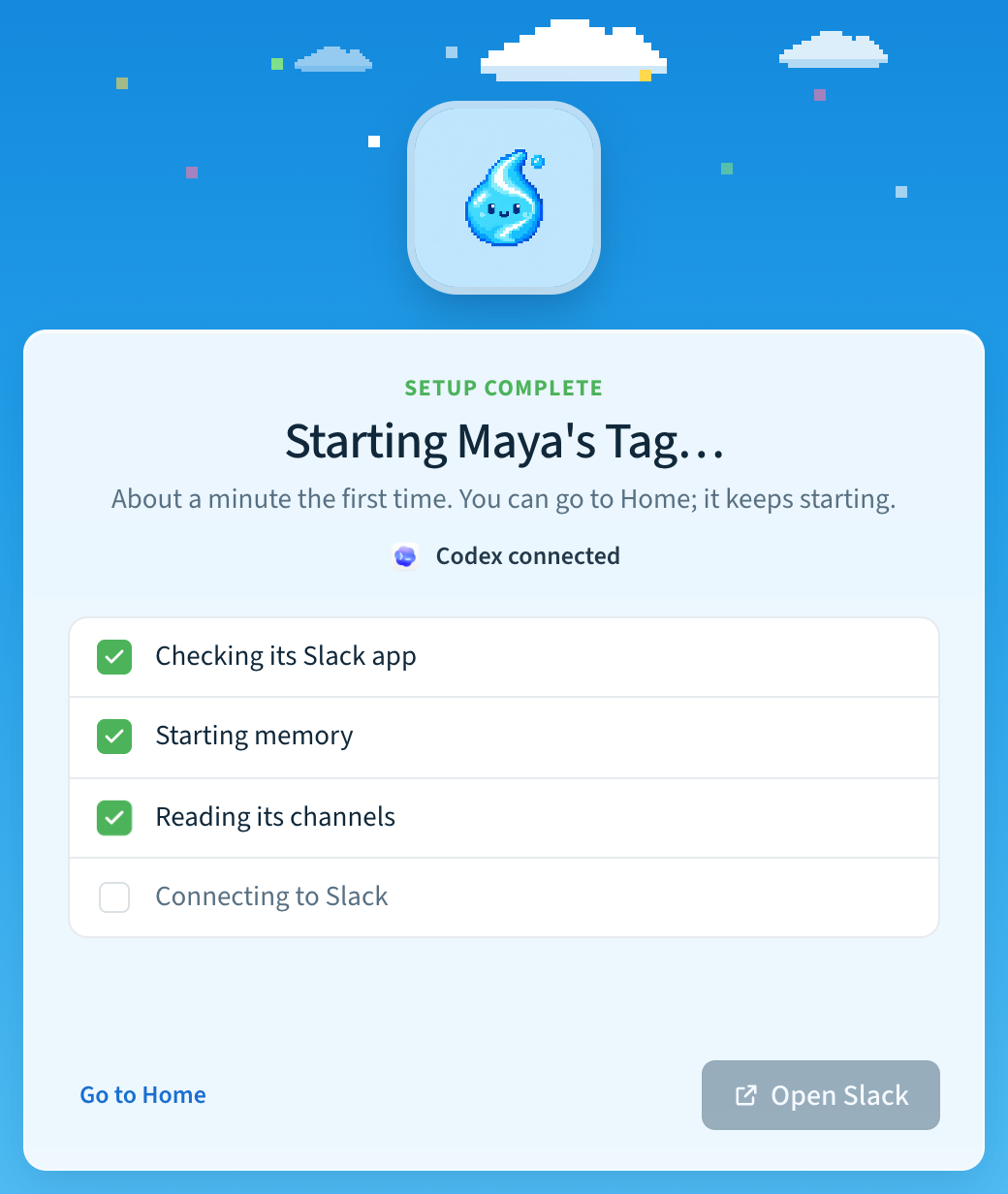
The Tag can answer before it finishes reading your channels. If setup stops, choose the Tag under Finish setting up to carry on.
Use an existing app
Already have a Slack app you want your Tag to use? On the first step, click Use an existing app. The app keeps its own name and picture, so you skip naming. The steps become AI, Workspace, Your app, and Channels.
- Choose the AI model and the workspace your app is in.
- On Which app?, pick your app. The list shows apps made with Tag, apps
from the Slack CLI, and apps your other Tags use. One app serves one Tag,
so those can't be picked. To use another app, click Use a different
app and paste its link from
api.slack.com/apps, or its App ID, which starts withA. - Tag checks the app's settings. If something is missing, click Add them. Tag adds only what's missing, and Slack asks you to reinstall the app. Or click I'll do it myself to see the steps in Slack.
- Click Connect, then choose channels.
In the terminal: tag setup for your first Tag, tag add for another. Then
run the tag NAME start command it prints. Choose Use an existing app on
the first question to link an app you already have.
Start or stop
Use the Tag's switch on Home. To start or stop every Tag in a workspace, click Start all or Stop all. Two Tags can start at the same time, so you don't have to wait for one to finish before you switch on the next.
In the terminal: tag NAME start, tag NAME stop, or tag NAME restart.
Change the model
- Open the Tag and go to Details.
- Choose a Model and thinking level.
Tag saves both and restarts the Tag if it is running. Every request in Slack uses this model. To add an AI account, open Settings → General → AI connections.
In the terminal: tag NAME settings ai model VALUE.
Rename or describe
- Open the Tag and go to Details.
- Click Rename next to the name, or Edit next to the description.
The description is one line, up to 140 characters. It appears on the Tag's Slack profile. Tag changes it in Slack first. If Slack asks you to sign in again, nothing changes.
In the terminal: tag NAME rename "Research Tag" or
tag NAME describe "Digs through docs to answer research questions".
Keep Tags running
Open Settings → General and turn on Keep Tags running. Your Tags start after you sign in to your computer and restart if they stop. Turn on Open Tag at login to open the app too.
In the terminal: tag autostart on.
Update
Open Settings → Updates and click Update Tag. This updates the app and your Tags together. Your settings are kept. To change how new your updates are, choose a Release channel. See Release channels.
In the terminal: tag upgrade.
Remove a Tag
- Open the Tag and go to Details.
- Click Remove this Tag….
This stops the Tag and moves its files to an abandoned folder. It never
deletes them. The Slack app stays.
To delete the Slack app too, click Also delete the Slack app…. Tag shows the app name, App ID, and workspace, and asks you to type the App ID. This is permanent. A new app gets a different App ID and bot.
In the terminal: tag NAME remove. To also delete the Slack app:
tag NAME remove --delete-app --confirm-app A0XYZ789.
To start a Tag's setup over, run tag NAME reset in the terminal. The app
doesn't have this. Remove the Tag and add a new one instead.
Command reference
| Task | App | Terminal |
|---|---|---|
| Add a Tag | Add Tag on Home | tag setup (first Tag), tag add |
| See your Tags | Home | tag list |
| Start or stop | The Tag's switch, Start all, Stop all | tag NAME start / stop / restart |
| See activity | The Tag → Activity | tag NAME logs --activity RUN_ID |
| See logs | The Tag → Logs | tag NAME logs |
| Find a problem | Fix or View logs | tag NAME status, tag NAME doctor |
| Rename | Details → Rename | tag NAME rename "Name" |
| Describe | Details → Edit | tag NAME describe "…" |
| Model | Details → Model | tag NAME settings ai model VALUE |
| AI accounts | Settings → General → AI connections | tag settings ai |
| Keep Tags running | Settings → General → Keep Tags running | tag autostart on |
| Update | Settings → Updates → Update Tag | tag upgrade |
| Release channel | Settings → Updates → Release channel | tag upgrade --channel beta |
| Usage data | Settings → General → Share usage data | tag telemetry on|off |
| Remove a Tag | Details → Remove this Tag… | tag NAME remove |
| Start setup over | Not available | tag NAME reset |
| Channels and advanced settings | Not available | tag NAME settings |
NAME is the Tag's name from tag list. Commands without a name use your main
Tag.
More help
- Use your ChatGPT plan
- Models and your own API
- Enterprise Grid and developer sandboxes
- Troubleshooting
- Tag in the terminal: multiple Tags, setup details, upgrades, and automation, for operators and developers.
Last updated